
Orca Slicer
Orca Slicer v2.4.2 is the latest stable release of the free, open-source 3D printing slicer based on Bambu Studio and developed by SoftFever. It offers faster slicing, precise G-code generation, built-in calibration tools, multi-material support, and regular updates from the official GitHub repository.
It offers fast slicing, precise G-code generation, Ocra’s calibration tools, multi-material support, and regular updates from the open-source community.
Looking for a powerful and beginner-friendly 3D printing slicer? Orca Slicer helps you turn your digital 3D models into accurate, high-quality prints with fast slicing, advanced calibration tools, and support for hundreds of popular printers.

This website does NOT host any software files.
All downloads are provided directly from the official GitHub repository of Orca Slicer.
We do not modify, bundle, or redistribute any software.
Download the latest Orca Slicer v2.4.2 from the official GitHub release and enjoy faster slicing, improved performance, bug fixes, and the newest features for Windows, macOS, and Linux.
Developed by SoftFever and based on Bambu Studio, Orca Slicer provides professional-grade slicing, advanced calibration tools, optimized G-code generation, and support for modern 3D printers.
Among many available 3D printing slicers, Orca Slicer v2.4.2 stands out with built-in calibration tools, faster slicing, improved cloud synchronization, optimized G-code generation, and support for multiple printer brands. It automatically adjusts important settings like flow, temperature, pressure advance, and retraction to help produce accurate and consistent prints.
Download Orca Slicer v2.4.2 directly from the official GitHub repository. Choose the correct installer for Windows, macOS, or Linux and enjoy the latest features, performance improvements, verified releases, and regular updates from the developers.
What’s New in Orca Slicer v2.4.2
- Key highlights:
- Send sliced jobs as packaged 3MF (instead of G-code)
- Microsoft Store (MSIX) install channel for Windows
- Stay logged in to Orca Cloud while offline
- Filament list improvements (count badge, auto-scroll)
- Faster slicing (G-code caching) — Benchy ~37% faster, 16-Benchy plate ~65% faster
- Notification for subscribed preset updates
- Troubleshoot Center, skirt overhaul, smoother shading
- Profile sync across machines
- Preset bundle sharing + community Explore page (cloud.orcaslicer.com)
- Version history of profiles
- Z Anti-Aliasing (ZAA) contouring
- Machine Input Shaping
- Optimized Gyroid infill
- Realistic View (Phong shading, SSAO, shadows)
- Bridging overhaul (dedicated bridge line width)
- Creality K-series support
- Native Moonraker & 3DPrinterOS host support
Also Read: Orca slicer Wiki
How to Download Orca Slicer?
You can download Orca Slicer from its Download page. Simply choose the version that matches your operating system Windows (.exe), macOS (.dmg), or Linux (.AppImage) then download and install it following the on-screen steps. It’s quick, safe, and verified with GitHub’s digital signature, ensuring a smooth setup for all users.
Steps to Install Orca Slicer on Windows 10 or Later
orcaslicer Github download link Windows 10 and newer versions, including the latest Windows 11 builds.
- Download the
.exeinstaller file from the download page. - Right-click the downloaded file and select “Open” to start the installation.
- Follow the on-screen steps: Next → I Agree → Install → Finish.
- If Orca Slicer does not start, install or repair Microsoft Visual C++ Redistributables.
For Windows 11 Users:
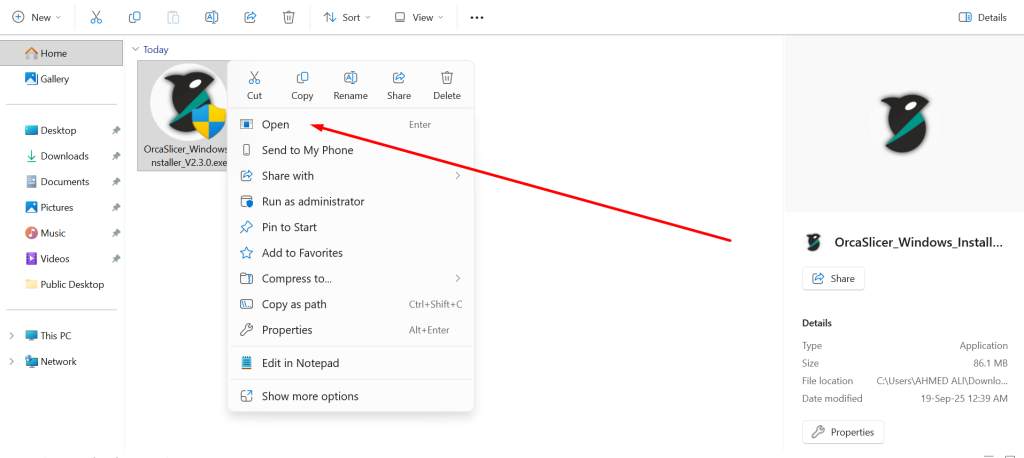
Right-click the Orca Slicer setup file and select “Open” to start the installation.
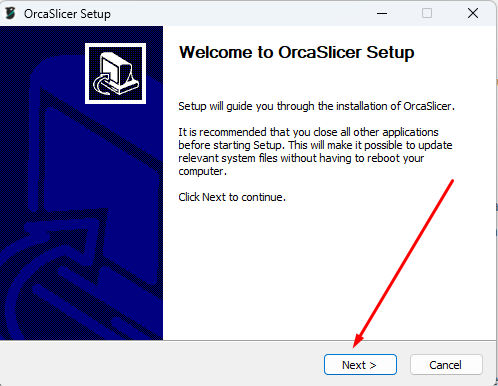
To start the Orca Slicer install, open the Orca Slicer Setup window. Click Next to proceed.
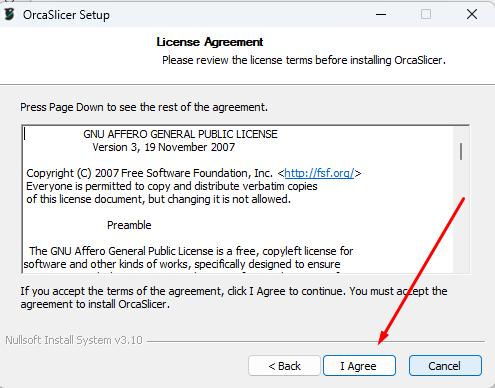
Next, you’ll see the License Agreement. Read through it, then click I Agree to accept the terms.
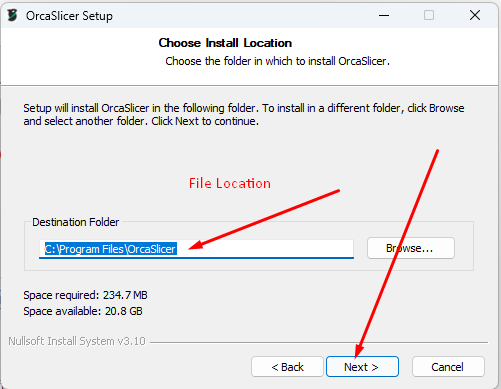
Choose the Install Location where you want Orca Slicer to be installed. You can use the default location or change it as needed. Click Next to continue.
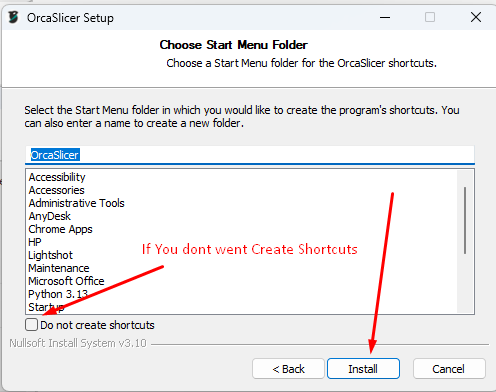
You’ll be asked to choose a Start Menu Folder for Orca Slicer shortcuts. If you don’t want shortcuts, you can uncheck the option. Click Next to continue.
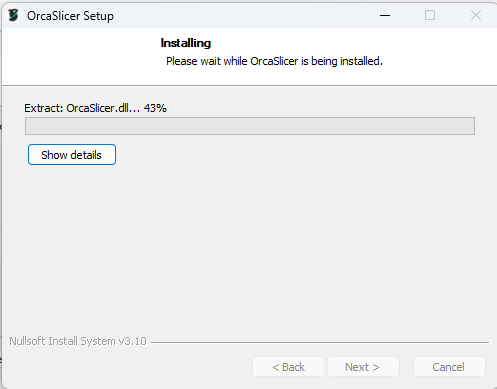
Click Install to start the installation process. Wait for it to finish.
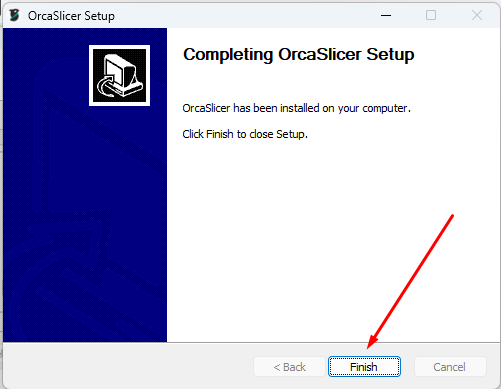
Once the installation is complete, you’ll see the Completing OrcaSlicer Setup screen. Click Finish to finalize the process.
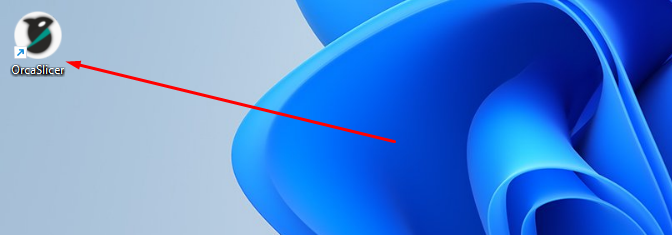
After installation, you can launch Orca Slicer from the Desktop shortcut or the Start Menu. The installation is complete, and you’re ready to use Orca Ai
For macOS Users:
If you are using a 3d print OS, download the .dmg file from the same releases page.
After the file is downloaded, open it and drag the Orca Slicer app into your Applications folder.
The first time you launch it, bambu studio mac OS may block the app for orca security reasons.
In that case, go to System Settings → Privacy & Security, and manually allow the app to run.
For Linux flatpak Users: For Linux users, the official Flathub version is also available. You can install it with:
flatpak install flathub com.orcaslicer.OrcaSlicer
After that, simply run the file to start the application. This quick process works on most popular Linux flatpak distributions like Ubuntu, Fedora, and Debian.
Also Read: Orca Slicer Not Working?
What is Orca Slicer? (Overview & Latest Updates)
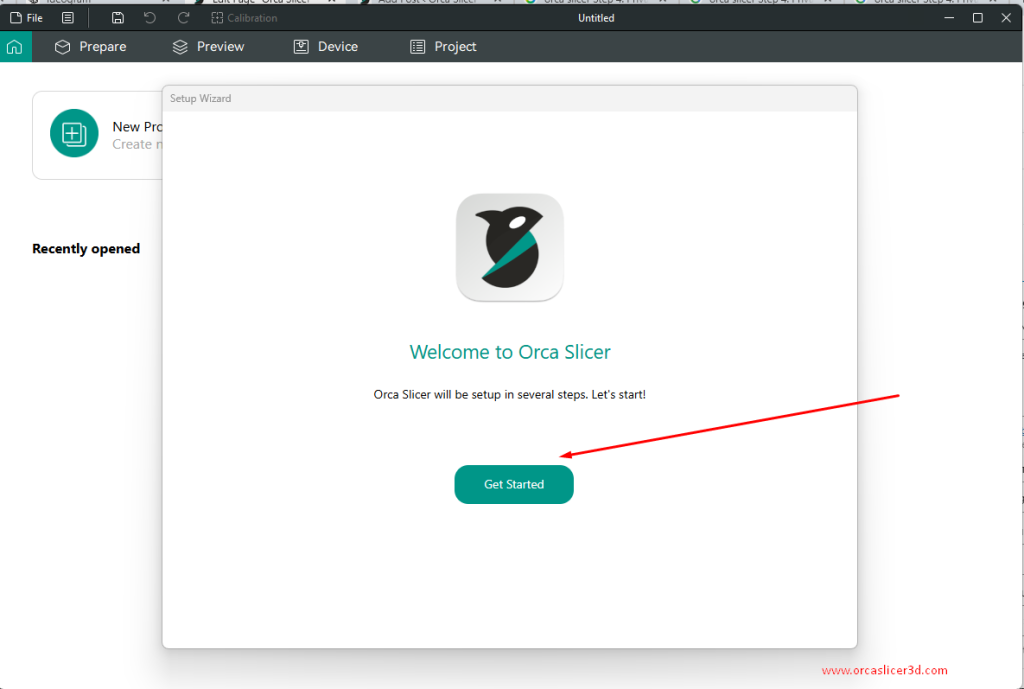
Orca Slicer is a simple and powerful converts 3D models into G-code printing slicer. It works well for beginners, hobbyists, and professionals. 3d printer slicer is built on bambu labs slicer but comes with extra features, built-in Ocra’s calibration, and support for many printers, not just bambu labs app.
Who Should Use Orca Slicer
- Beginners who want a quick setup and reliable, high-quality prints.
- Intermediate users looking for more control and advanced tools.
- Professionals and makers using klipper automotive, Marlin, or popular brands like Prusa firmware, Anycubic, and Creality Slicer Download.
Latest Version and Updates
Orca Slicer is an open-source project that receives regular updates and improvements from its active developer and user community.
It was originally created by SoftFever in 2023 as a fork of bambu labs studio download, and has quickly grown thanks to its powerful features and beginner-friendly calibrated tools.
The newest stable version is Orca Slicer v2.4.2, featuring improved cloud sync, better printer compatibility, bug fixes, performance enhancements, and a smoother overall printing experience.
- Extra Solid Infill:
Add extra solid layers at specific heights to reinforce parts without changing the entire infill pattern.
Perfect for strengthening mounting points or high-stress areas. - Improved Infill Rotation:
Clearer controls for sparse infill density direction, avoiding conflicts and improving print consistency. - Bug Fixes:
Fixes issues like rectilinear infill optimization problems and export errors when saving printer config bundles. - UI/UX Enhancements:
G-code viewer upgrades, better scaling for icons, crash fixes, and smoother navigation. Check Complete G-Code list - Profiles & Localization Updates:
New and optimized printer profiles for brands like Qidi, Phrozen, and FlyingBear, plus translation updates in multiple languages.
Why Choose Orca Slicer
My Orca combines ease of use, powerful features, and a supportive community.
It’s great for anyone who wants to simplify 3D printing tools while getting accurate and consistent prints.
Whether you’re just starting or already experienced, Orca Slicer gives you the tools to print better and faster.
Note: Orca Slicer supports multiple languages, including English, German, French, Spanish, Brazilian Portuguese, and Traditional Chinese. As an open-source project licensed under the GNU Affero General Public License v3.0, it is completely free to use, modify, and distribute.
Stable vs Beta vs Nightly Build – What’s the Difference?
Current Stable Version: v2.4.2 Official Release
Beta / Release Candidate Builds:
For v2.3.2, the pre-release stages were Beta, Beta2, RC, and RC2. For v2.4.2, the cycle used Alpha and Beta builds before the official release.
Nightly Build:
Nightly builds are experimental versions generated from the latest development code. They may include new features but can also contain bugs or unstable behavior.
Also Read: How to Unlock Plate Orca Slicer
Verified GitHub Releases
All official Orca Slicer downloads are published on GitHub and come with a verified digital signature.
This ensures the files are authentic and safe, created directly by the official developers.
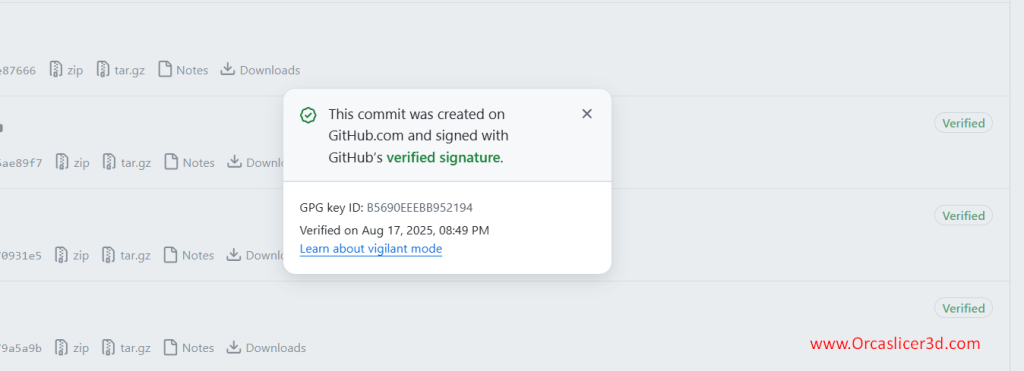
- Look for the green “Verified” badge on GitHub — it confirms that the release was signed securely using GitHub’s GPG key.
- Always check this badge before downloading to make sure your version has not been altered or tampered with.
- Official tags and signed commits can be found on GitHub
Tip: If you don’t see the green Verified label, do NOT download the file — it may be unsafe.
Example of Verified Badge on GitHub:
Orca Slicer Overview, How to Use Orca Slicer? Setup Guide and Benefits
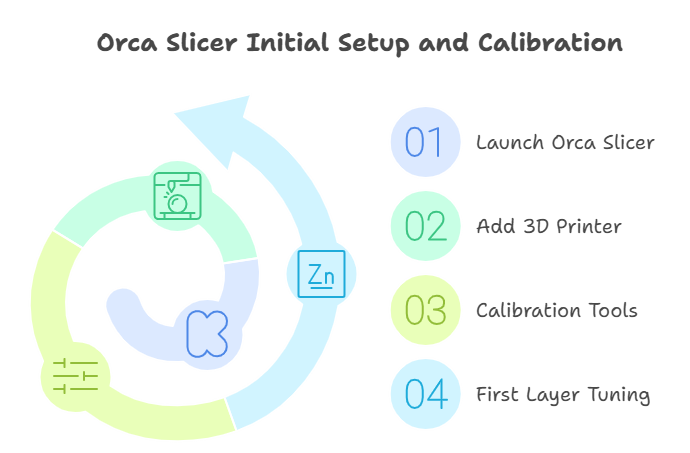
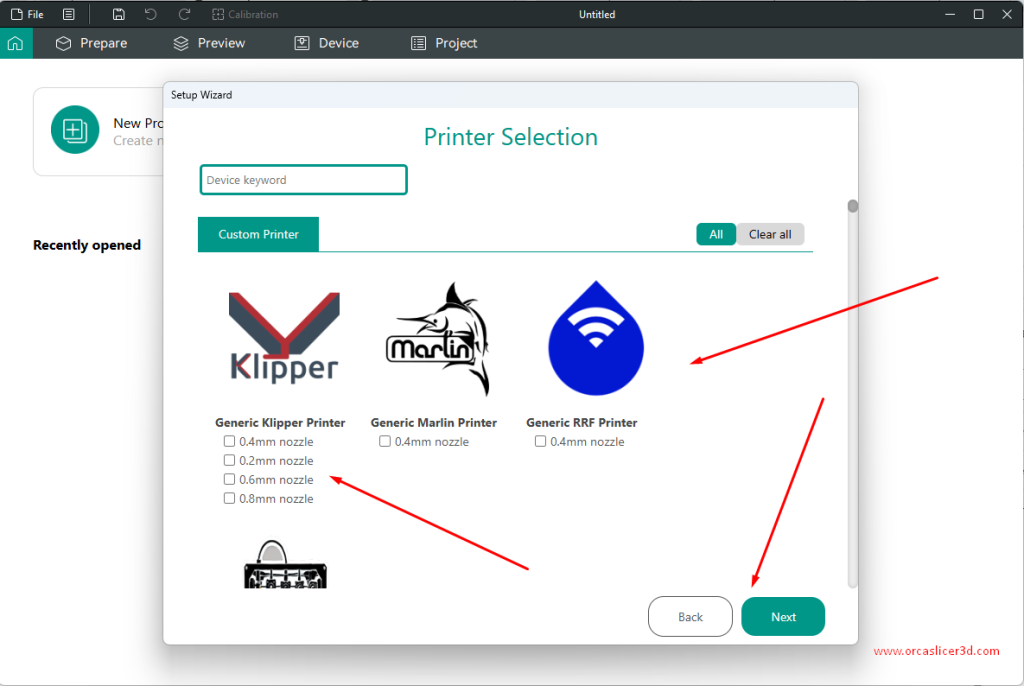
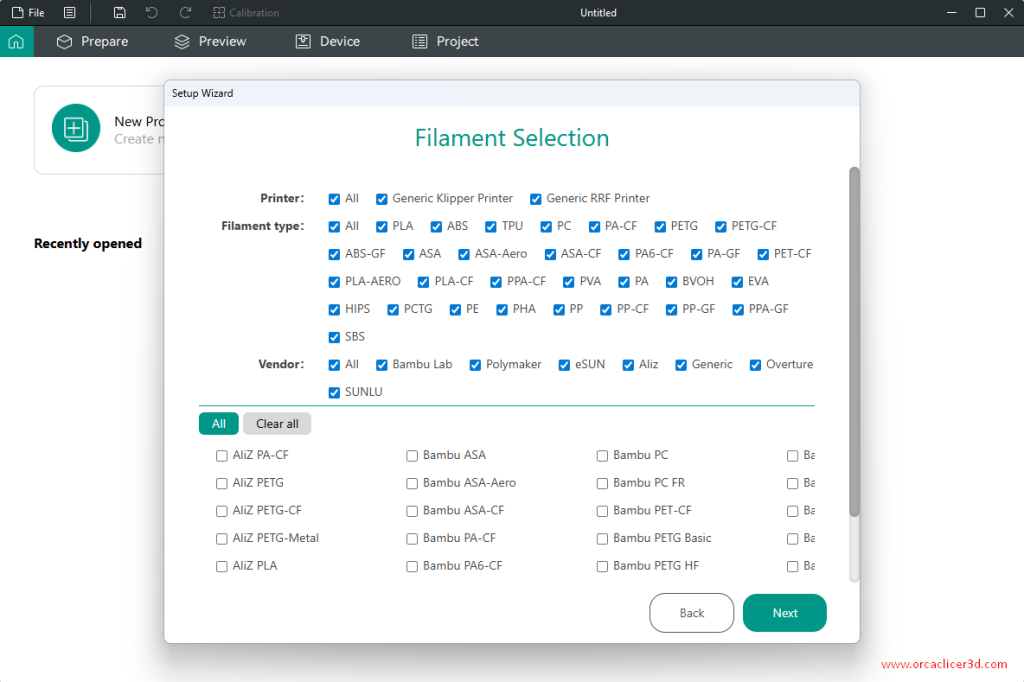
Once the installation is complete, you can move on to the initial setup and volume flow rate calibrating. Orca Slicer makes this process beginner-friendly with a guided wizard:
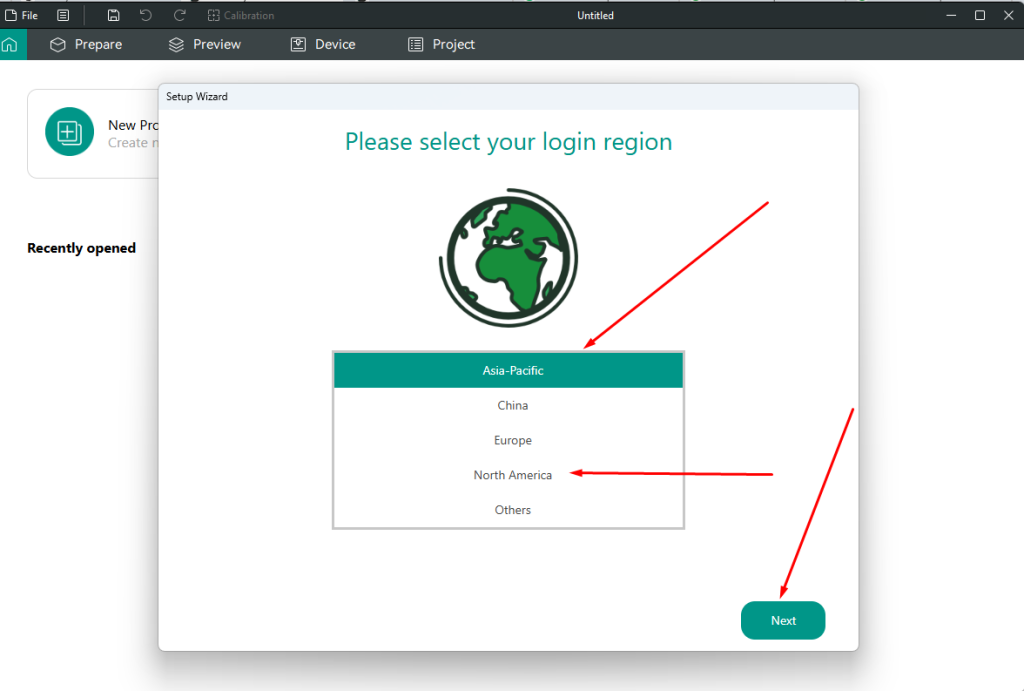
- Add Your 3d printer program – Supports bambu lab app, Anycubic Kobra, Elegoo cura 3d Neptune, Creality Slicer Ender series, Voron, and more. You can also manually add custom printers running on Klipper, Marlin, etc.
- Calibration Tools – Built-in tests for Pressure Advance, Input Shaping, Temperature Towers, Retraction, and Adaptive Bed Mesh (to handle uneven or warped beds).
- First Layer & Z Offset Tuning – Simple visual tools and test printer make it easy to achieve the perfect first layer. With these steps completed, Orca Slicer is ready to deliver accurate and high-quality 3D prints right from your first project.
Top Orca Slicer Features
| Feature | Detailed Description |
|---|---|
| Calibrate Tools | Orca offers built-in calibrating tools to fine-tune your 3d printer calibration cube. It includes tests for dimension formula of pressure Advance, Input Shaping, Z Offset, and more. Orca Slicer Calibration tools help reduce print errors and improve print quality by ensuring your printer is perfectly how to calibrate a 3d printer. |
| Printer Compatibility | Works seamlessly with a wide range of popular 3D printers, including bambu lab slicer, Prusa vs Bambu, Anycubic, Elegoo, Voron, Creality Slicer Ender Series (ender 3 v3 ke), and many others. This makes it an excellent choice for both beginners and professionals using different printer models. |
| Remote slicer 3d printing | Integrates with platforms like Obico, OctoPrint, Mainsail, and Fluidd, allowing you to monitor and control your printer wirelessly. This feature is perfect for users who want to manage prints remotely and receive alerts for print failures. |
| Seam Painting | Provides visual tools that let you control seam placement on your 3D models. By choosing where the seam appears, you can achieve cleaner prints and improve the overall appearance of your final product. |
| Polyhole Fix | Automatically adjusts and compensates for small orca size that usually print undersized, ensuring accurate dimensions for functional parts and precision models. |
| Smart Slicing Modes | Includes advanced slicing features like Lightning Infill, Ironing, and Arachne Wall Generator. These modes help improve optimal print flow speed test, strength, and surface finish, while reducing material usage. |
| Profile Repository | Access a large library where you can share or download ready-to-use slicer profiles for specific printers. This saves time during setup and ensures optimized print settings for different machines. |
Supported Printers
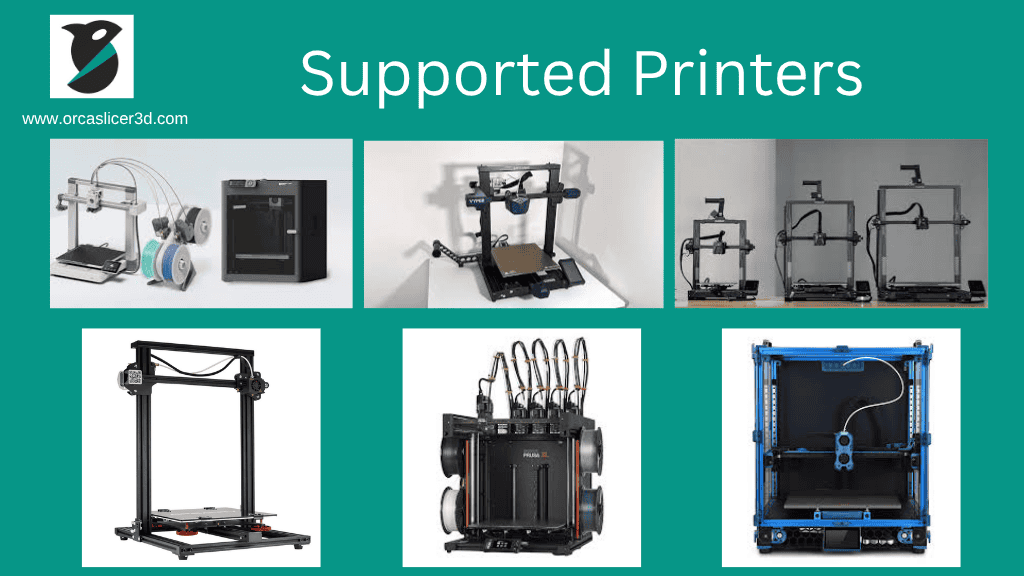
Orca Slicer comes with ready-to-use profiles for many popular 3D printer apps, making setup quick and easy for beginners as well as advanced users:
- Bambu Slicer Lab: X1C, P1P, A1 Mini
- Creality Slicer Download: ender 3 v3 ke, Ender 5, CR-10 series
- Anycubic: Kobra, Vyper, Mega X
- Elegoo: Neptune 3 / 4 series
- Prusa: MK3S+, MINI, XL (with Marlin firmware)
- Others: Voron, RatRig, Tronxy, and many more community-supported printers
Tip: You can also import profiles from other slicers like cura slicer download or Prusa Slicer download and using .ini or .3mf files for even more flexibility.
Also Read: How to Import ini Profiles to Orca Slicer
What is the difference between Orca Slicer Software and PrusaSlicer?
Orca Slicer and PrusaSlicer mainly differ in design focus and user experience Orca stands out as the more modern, faster, and user-friendly evolution of Prusa Slicer.
With its sleek interface, multi-plate support, built-in printer control, and smoother workflow inspired by bambulab studio, Orca delivers a cutting-edge, efficient slicing experience that appeals to both beginners and seasoned makers.
While Prusa Slicer remains a solid professional tool with deep customization and strong multi-material support, Orca takes the lead in optimalprint, usability, and innovation, making it the smarter choice for today’s 3D printing enthusiasts.
Also Read: orca slicer vs elegoo slicer
Best Orca Slicer Settings for Beginners
When you are just starting with 3d slicer, setting up your printer the right way is very important.
Good preparation will help you get clean, strong, and accurate prints, even if you are new to 3D printing.
Here are a few simple steps to make your printing process smooth and trouble-free:
- Level the Print Bed
Before you start any new project, always level your print bed.
This makes sure the first layer sticks well and prevents print failures. - Start with PLA Filament
PLA is the easiest filament to work with.
It needs less Ocra’s calibration and gives smooth, high-quality results, making it perfect for beginners. - Use Lightning Infill
When creating test models or prototypes, Lightning Infill helps you print faster while using less filament.
This saves both time and material. - Update Your Software and Firmware
Keep Orca Software and your best 3d printing software freefirmware updated.
Updates often include bug fixes, new features, and performance improvements. - Run Calibrations Tests Often
Ocra Calibration tests keep your printer settings accurate.
This helps you avoid 3d printer stringing, layer shifting, and other common print problems. - Layer height 3d printing orca slicer
Height of layer is how thick each Printed downloader layer will be. Click Here More Info
Quick What are the system requirements for Orca Slicer?
| Platform | OS & Version | CPU / Arch | RAM (min / rec) | GPU | Disk Space | Installer Type(s) |
|---|---|---|---|---|---|---|
| Windows | Windows 10 or later (64-bit) | Intel Core i3 or equivalent | 4 GB / 8 GB | DirectX 11 compatible | ≥ 500 MB | .exe installer, Portable (.zip) |
| macOS | macOS 10.13 or newer | Apple Silicon (M-series) or Intel 64-bit | 4 GB / 8 GB | Metal-compatible GPU | ≥ 500 MB | DMG (drag-and-drop) |
| Linux (AppImage) | Debian 10+, Ubuntu 20.04+, Mint 20+ | x86_64 (Intel/AMD) | 4 GB / 8 GB | OpenGL 3.2+ | ≥ 500 MB | AppImage (portable) |
| Linux (Flatpak – x86_64) | Ubuntu 22.04+, Fedora 39+, Debian 11+ | x86_64 (Intel/AMD) | 4 GB / 8 GB | OpenGL 3.2+ | ≥ 500 MB | Flatpak package |
| Linux (Flatpak – ARM64) | Ubuntu 22.04+, Fedora 39+, Debian 11+ | ARM64 (e.g., Raspberry Pi 5) | 4 GB / 8 GB | OpenGL 3.2+ | ≥ 500 MB | Flatpak package |
* Values consolidated from your two articles (v2.3.0, v2.3.1 and v2.3.2 notes). 8 GB RAM recommended for best performance.
Also Read: best 3d printers compatible with orca ai
Why Beginner Settings Matter
Using the right settings is crucial for successful prints, especially if you are new to 3D printing.
Below is a simple guide to help you choose the best settings for the three most common PA filament types: PLA, PETG, and ABS.
| Setting | PLA (Default Filament) | PETG (Strong Prints) | ABS (Heat-Resistant) |
|---|---|---|---|
| Layer Height | 0.2 mm | 0.2 mm | 0.2 mm |
| Infill Density | 15–20% (Grid) | 20–25% (Gyroid) | 25% (Cubic) |
| Print Speed | 50 mm/s (Balanced) | 45 mm/s | 40 mm/s |
| Nozzle Temperature | 200 °C | 240 °C | 250 °C |
| Bed Temperature | 60 °C | 75 °C | 100 °C |
| Retraction | 1 mm @ 35 mm/s | 0.8 mm @ 30 mm/s | 1 mm @ 35 mm/s |
| First Layer Height | 0.24 mm | 0.24 mm | 0.28 mm |
Extra Tips for Success
- Use enclosed printers when working with ABS to prevent warping.
- PETG needs slower print speeds to avoid stringing.
- Store filaments in dry boxes to keep moisture away and maintain print quality.
- Try different infill patterns to balance strength and filament usage.
Also Check: What is Flow Rate Calculator
How to Unlock Plate Orca Slicer
Advanced Features (For Pro Users)
Orca Slicer isn’t just for beginners it packs advanced tools for professional users:
- Arachne Wall ai 3d Print Generator – Generates walls with variable thickness for stronger parts.
- Lightning Infill – Extremely fast infill strategy for prototypes.
- Seam Painting – Place seams exactly where you want for cleaner surface finishes.
- Adaptive Bed Mesh Leveling – Automatically compensates for warped or uneven print beds.
- Polyhole Fix – Ensures accurate hole orca sizes, solving the “undersized hole problem”.
Use these when printing functional parts, prototypes, or high-detail models.
Also Read: Orca Speed
Performance Benchmarks (Community Feedback)
Slicing Speed
Many users report that Orca feels noticeably faster than other 3d slicers, especially on complex models.
Community feedback suggests that slicing performance is often significantly quicker compared to older slicer like cura download, which makes Orca ideal for large or detailed projects.
Print Quality
Features like Seam Painting and Polyhole Fix help improve surface smoothness and pressure ka dimensional formula for pressure accuracy and max flow rate formula. Users often share that their prints come out cleaner, with fewer surface artifacts and more precise orca hole size dimensions, especially when printing functional parts.
Filament Usage & Efficiency
Advanced infill strategies like Lightning Infill allow Slicer to save material while maintaining strength. This can help reduce filament costs over time, especially for prototypes and large-scale prints.
Note: These results are based on community reports and general experiences. Actual performance will vary depending on your printer model, hardware, settings, and filament type.
FAQs
OrcaSlicer vs CuraSlicer, PrusaSlicer, SuperSlicer & BambuStudio
| Feature | Orca Slicer | Cura Slicer | Prusa Slicer | Bambu Lab Software | Super Slicer |
|---|---|---|---|---|---|
| Open Source | ✅ Yes | ✅ Yes | ✅ Yes | ❌ No | ✅ Yes |
| Volume Flow Rate Calibration | ✅ Built-in | ❌ Plugin | ⚠️ Limited | ❌ Basic | ✅ Advanced |
| Remote Printing | ✅ Obico, OctoPrint | ❌ No | ⚠️ Partial | ✅ Native | ❌ No |
| Beginner Friendly | ✅ High | ⚠️ Medium | ⚠️ Medium | ✅ Easy | ❌ Complex |
| Speed & UI | ✅ Fast | ⚠️ Slower | ⚠️ Medium | ✅ Fast | ⚠️ Medium |
| Seam Painting | ✅ Yes | ❌ No | ✅ Yes | ❌ No | ✅ Yes |
| Cloud Profile Sync (New) | ✅ Yes (Orca Cloud) | ⚠️ Partial (Digital Factory) | ❌ No | ⚠️ Partial (Bambu Cloud) | ❌ No |
Pros of Orca Slicer: Great for beginners, modern features, wide compatibility.
Cons: Newer than cura software / prusa, so some niche profiles missing.
Community & Open-Source Development
One of Orca Slicer’s biggest strengths is its active open-source community:
- Over 15.1k GitHub stars and 2.8k forks.
- Active Reddit & Discord communities sharing profiles, 3d printer troubleshooting tips.
- Dozens of YouTube tutorials for setup & advanced printing.
This strong community support ensures Orca Slicer keeps evolving faster than many commercial slicers.
Also Read: Bambu labs firmware update | orca slicer vs bambu studio
Final Thoughts
Orca Slicer is more than just a Bambu Studio fork.
It’s a powerful, fast-evolving slicing tool that delivers precision, automation, and print quality for free whether you’re using a bambu app, Creality Slicer, Anycubic, or custom Klipper setup.
If you’re tired of Cura’s clunkiness, orca flashforge slicer adventurer 5m printers or PrusaSlicer’s limitations, give Orca Slicer a try. You’ll get better prints, smarter flow rate calibration, and a smoother overall experience.