Orca Slicer Update Guide: The Complete Step-by-Step Guide for 3D Printing Enthusiasts
Keeping your 3D printing software up to date is crucial for maintaining optimal print quality, performance, and compatibility. Orca Slicer regularly introduces updates that include new features, bug fixes, and performance improvements, ensuring your 3D printing workflow remains smooth and reliable.
In this comprehensive guide, you’ll learn how to update Orca Slicer step by step without losing your printer profiles, filament settings, or custom configurations.
Why You Should Update Orca Slicer
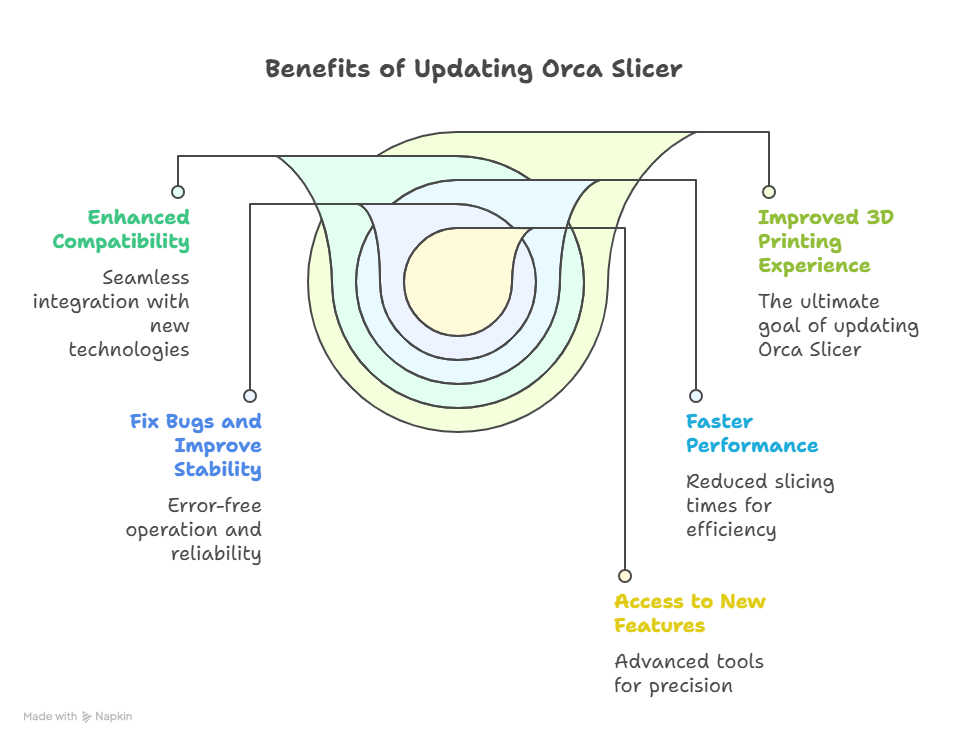
Updating Orca Slicer isn’t just about staying current—it has a direct impact on your print quality, stability, and overall 3D printing experience. Here’s why:
1. Access to New Features
Every update introduces new slicing features, improved filament profiles, and advanced calibration tools. These help you fine-tune your printer for greater accuracy and precision.
2. Fix Bugs and Improve Stability
Older versions may have issues that cause slicing errors or failed prints. Updates fix these bugs, ensuring smoother, error-free operation.
3. Faster Performance
Each release optimizes Orca Slicer to reduce slicing times, even for complex 3D models, making your workflow more efficient.
4. Enhanced Compatibility
Updates improve compatibility with new printers, operating systems, and modern 3D printing technologies, so you can integrate Orca Slicer seamlessly with your hardware and software setup.
Step-by-Step Guide to Update Orca Slicer Safely
Follow these steps to update Orca Slicer without losing your data or custom settings.
Step 1: Verify Your Current Version
- Open Orca Slicer on your computer.
- From the top menu, select Help or About.
- Note down the version number displayed.
- Compare it to the latest version listed on the official Orca Slicer release page.
- If your version is outdated, continue with the steps below.
Step 2: Back Up Your Settings (Recommended)
Before making any changes, create a backup of your existing profiles and settings. This ensures you can restore them if something goes wrong during the update.
- Go to File > Export Settings.
- Save the backup file to a secure location on your device.
- You’ll later be able to import this backup to restore your configurations.
Step 3: Download the Latest Version
- Visit the official Orca Slicer download page.
- Select the installer for your operating system:
- Windows:
.exefile - macOS:
.dmgfile - Linux:
.AppImagefile
- Windows:
- Save the installer to a folder you can easily access later.
Pro Tip: Always download updates directly from trusted sources to prevent corrupted files or security risks.
Step 4: Install the Update
- Close Orca Slicer completely before starting the installation.
- Windows: Double-click the
.exeinstaller and follow the setup wizard. - macOS: Drag the Orca Slicer application into the Applications folder.
- Linux:
- Open a terminal and navigate to the folder containing the
.AppImagefile. - Run this command:
chmod +x OrcaSlicer.AppImage - Launch the
.AppImageto run the updated version.
- Open a terminal and navigate to the folder containing the
Step 5: Verify the Update
After installing the new version:
- Open Orca Slicer.
- Go to Help > About and confirm the version number matches the latest release.
- Test the slicer by loading and slicing a small model to ensure everything functions correctly.
Step 6: Restore Your Backup (If Needed)
If your profiles or settings appear missing:
- Open Orca Slicer.
- Go to File > Import Settings.
- Locate the backup file you saved earlier and import it.
- Your printer and filament profiles will now be restored.
How to Update Orca Slicer on Different Platforms
Windows
- Download the
.exeinstaller. - Run the file and complete the step-by-step installation wizard.
- Works with Windows 7 through Windows 11.
macOS
- Download the
.dmgfile. - Drag Orca Slicer to the Applications folder.
- If blocked, go to System Settings > Privacy & Security and allow the app to run.
Linux
- Download the
.AppImagefile. - Use terminal commands to make the file executable:
chmod +x OrcaSlicer.AppImage - Launch the file to start the updated version.
Pro Tips for a Smooth Update
- Stick to stable versions: Use stable builds for consistent and reliable performance.
- Regular backups: Frequently export and save your settings to avoid data loss.
- Test after updating: Run a small calibration print to confirm everything works perfectly.
- Read release notes: Learn about new features and changes before starting a big project.
Troubleshooting Common Update Issues
| Issue | Possible Cause | Solution |
|---|---|---|
| Profiles missing after update | Settings not migrated automatically | Import them from your saved backup file. |
| Update failed to install | Corrupted or incomplete installer | Re-download the installer and retry. |
| Slicer crashes on startup | Conflict with old files or cache | Clear old files and reinstall Orca Slicer. |
| Printer not detected | Driver issue or connection problem | Update drivers and reconnect hardware. |
Quick Mini-Guides for Beginners
How to Change Temperature in Orca Slicer
- Go to Print Settings → Temperature.
- Adjust nozzle and bed temperatures based on the filament type.
- Save the changes in your filament profile.
How to Adjust Retraction
- Navigate to Print Settings → Retraction.
- Fine-tune the retraction distance and speed to reduce stringing.
- Test with a small model for optimal results.
How to Change Print Speed
- Open Print Settings → Speed.
- Set different speeds for outer walls, inner walls, and infill.
- Balance between print speed and quality.
![12 Best Orca Slicer Alternatives in 2026 [Free & Paid Options]](https://orcaslicer3d.com/wp-content/uploads/2025/09/Best-Orca-Slicer-Alternatives-768x431.jpeg "12 Best Orca Slicer Alternatives in 2026 [Free & Paid Options] 7")