Orca Slicer Keyboard Shortcuts for Windows, Mac & Linux
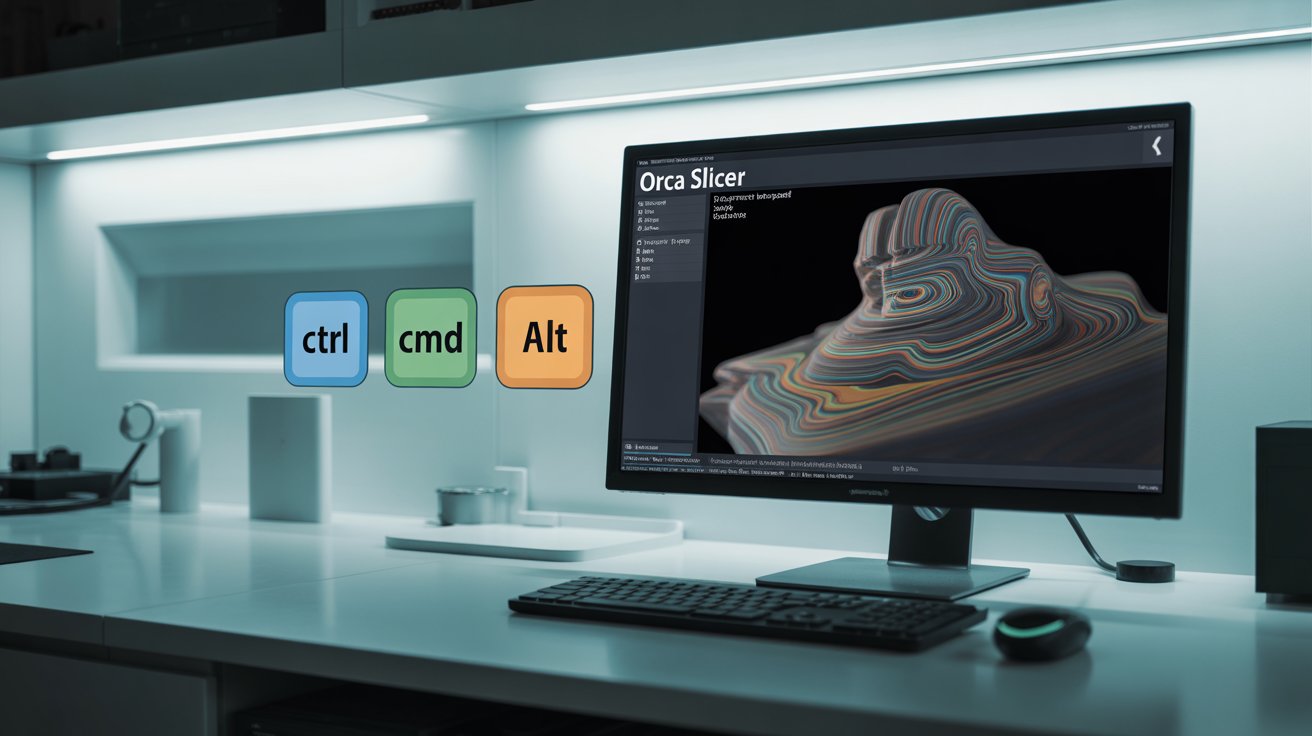
Orca Slicer keyboard shortcuts are a lifesaver for anyone who wants to increase 3D printing productivity. Whether you’re an enthusiast experimenting with cool things at home or a professional designer with sophisticated prototypes, the right key combos can save you time, reduce the amount of clicking you do and help make you more proficient with the software.
In this full guide, we’ll look at the best Orca Slicer keyboard shortcuts for Windows, Mac and Linux users. We’ll also provide ideas for how to personalize and use them in your everyday. So, let’s dive into the faster, smarter slicing world with Orca Slicer!
What is Orca Slicer?
If you are unfamiliar with Orca Slicer, it is a free, open-source app that converts your 3D models into what your printer needs to make them.
It’s built on the popular tools PrusaSlicer and Bambu Studio, with added features offering more control over your prints.
Advanced calibration, support for a variety of 3D printer models and intuitive design are just some of the highlights that make it a 3D printing favorite.
But to really take advantage, you need to know the keyboard shortcuts.
They allow you to work faster, prevent errors and concentrate on what’s most important — producing the most incredible prints possible.
Download Orca Slicer Keyboard Shortcuts List PDF for Free
Learning Orca Slicer keyboard shortcuts is akin to bestowing yourself with a productivity super power.
This reduces time wasted on clicking through menus and increases how precise you are when editing models, too — in the hopes of having a more seamless and error-free G-code generation process overall.
Whether you’re making use of Windows, Mac, or Linux, this guide will take you through the important shortcuts you need, the basics to more advanced, and even how to make them work for your own setup in 2026.
Why Keyboard Shortcuts Are Important in Orca Slicer
Keyboard shortcuts in 3D printing apps like Orca Slicer aren’t just a luxury — they’re a necessity for getting any work done.
You’re sitting there cutting a big model, and imagine that happening.
Rather than digging through your menu bar to locate an option with your mouse, you can trigger rotation, supports, and saving your project with a press of a button.
This shaves seconds per task, and it all adds up to hours saved.
Benefits of Learning Orca Slicer Shortcuts:
- Avoid repetitive UI clicks: Never sift through dropdowns again, just save with
Ctrl + Sand get back to your work. - Fast pan and zoom of your 3D model: Place the cursor over your model, hold
Alt, and click and hold the scroll wheel to zoom in on your model in fine steps. - Switch support structure easily: Press
Ctrl + Shift + Tto show/hide supports on the fly. - Save, load, or print models instantly: Pressing
Ctrl + Psends your file straight to the printer. - Change camera views quickly: Toggle between top- and bottom-views with
Ctrl + 1to inspect the build plate better.
Whether you’re designing functional parts for a machine or prepping CAD files for a print, the shortcuts can help you slice faster, with fewer errors, and get your prints done quicker.
At the speed of 3D printing, time is money, and Orca Slicer Shortcuts make a good workflow great.
Orca Slicer Keyboard Shortcuts Helper
The Orca Slicer comes with a host of Orca Slicer Shortcuts, from starting up a new project to refining the position of your model.
These are based on the most recent updates for 2026, from user reports and community contributions.
You can always see it in the app by visiting Menu > Help > Keyboard Orca Slicer Shortcuts, or you can type the ? key.
Orca Slicer Shortcuts (Windows)
| Function | Shortcut | Description |
|---|---|---|
| New Project | Ctrl + N | Creates a new project, erasing the current plate. |
| Open File (STL/3MF) | Ctrl + O | Import saved model files into the slicer. |
| Save Project | Ctrl + S | Save your work so you won’t lose changes. |
| Save As | Ctrl + Shift + S | Save a project copy with a new name. |
| Ctrl + P | Prepares and sends the file to the printer. | |
| Undo | Ctrl + Z | Undo the last action. |
| Redo | Ctrl + Y | Redo an undone action. |
| Copy | Ctrl + C | Copy the selected item. |
| Paste | Ctrl + V | Paste a copied item. |
| Cut | Ctrl + X | Remove selected object and copy it elsewhere. |
| Rotate Model | Ctrl + Alt + Drag | Rotate model using the mouse. |
| Zoom In/Out | Alt + Scroll Wheel | Zoom view in or out. |
| Reset View | Ctrl + R | Reset camera to default. |
| Top View | Ctrl + 1 | Switch to top view. |
| Front View | Ctrl + 2 | Switch to front view. |
| Side View | Ctrl + 3 | Switch to side view. |
| Toggle Support Structures | Ctrl + Shift + T | Show/hide support materials. |
| Toggle Filament Preview | Ctrl + F | Preview filament usage. |
| Auto-Center Object | Ctrl + Shift + C | Center the object on the plate. |
| Split Model | Ctrl + Shift + P | Split a model into parts. |
| Switch Preview Mode | V | Switch between editing and previewing. |
| Play/Pause Animation | Spacebar | Start or stop preview animation. |
| Increase Layer Height | Ctrl + ↑ | Increase layer height. |
| Zoom to Fit | Ctrl + 0 | Zoom to full model view. |
| Rotate Camera | Ctrl + Alt + Arrow Keys | Rotate the camera by keys. |
| Rotate Object Around Z-Axis | Page Up / Page Down | Rotate object on the Z-axis. |
Orca Slicer Keyboard Shortcuts (Mac)
| Function | Shortcut | Description |
|---|---|---|
| New Project | Cmd + N | Create a new project. |
| Open File | Cmd + O | Open a model file. |
| Save Project | Cmd + S | Save the project. |
| Save As | Cmd + Shift + S | Save as a new file. |
| Cmd + P | Print the file. | |
| Undo | Cmd + Z | Undo most recent action. |
| Redo | Cmd + Shift + Z | Redo last undone action. |
| Copy | Cmd + C | Copy object. |
| Paste | Cmd + V | Paste object. |
| Cut | Cmd + X | Cut object. |
| Rotate Model | Cmd + Option + Drag | Rotate model in 3D space. |
| Zoom In/Out | Option + Scroll Wheel | Zoom view. |
| Reset View | Cmd + R | Reset camera view. |
| Top View | Cmd + 1 | Top view. |
| Front View | Cmd + 2 | Front view. |
| Side View | Cmd + 3 | Side view. |
| Toggle Support Structures | Cmd + Shift + T | Show/hide supports. |
| Toggle Filament Preview | Cmd + F | Filament preview. |
| Auto-Center Object | Cmd + Shift + C | Center object on plate. |
| Split Model | Cmd + Shift + P | Split model into parts. |
| Switch Preview Mode | V | Switch preview mode. |
| Play/Pause Animation | Spacebar | Play or pause animation. |
| Increase Layer Height | Cmd + ↑ | Increase layer height. |
| Zoom to Fit | Cmd + 0 | Fit model into view. |
| Rotate Camera | Cmd + Option + Arrow Keys | Rotate camera view. |
| Z-Axis Rotations | Page Up / Page Down | Rotate around Z-axis. |
Orca Slicer Keyboard Shortcuts (Linux)
Linux shortcuts closely resemble Windows shortcuts for consistency.
| Function | Shortcut | Description |
|---|---|---|
| New Project | Ctrl + N | Create new project. |
| Open File | Ctrl + O | Open a file. |
| Save Project | Ctrl + S | Save the project. |
| Redo | Ctrl + Y | Redo an undo. |
| Ctrl + P | Print. | |
| Toggle Support Structures | Ctrl + Shift + T | Toggle supports. |
| Reset View | Ctrl + R | Reset view to default. |
| Rotate Model | Ctrl + Alt + Drag | Rotate model. |
| Zoom In/Out | Alt + Scroll | Zoom. |
| Top View | Ctrl + 1 | Top view. |
| Front View | Ctrl + 2 | Front view. |
| Side View | Ctrl + 3 | Side view. |
| Switch Between Nozzle and Filament | Ctrl + F | Filament preview. |
| Auto-Center Object | Ctrl + Shift + C | Center object. |
| Split Model | Ctrl + Shift + P | Split model. |
| Switch Preview Mode | V | Preview mode. |
| Play/Pause Preview Animation | Spacebar | Toggle animation. |
| Increase Layer Height | Ctrl + ↑ | Increase layer height. |
| Lower Layer Height | Ctrl + ↓ | Decrease layer height. |
Orca Slicer File Management Shortcuts Explained
Managing files is essential for every slicing session.
Ctrl + N(orCmd + Non Mac): Clears the plate for a new project.Ctrl + O: Opens files such as STL or 3MF.Ctrl + S: Save progress frequently.Ctrl + Shift + S: Save as a new version.Ctrl + P: Start printing instantly.
Other useful commands:
Ctrl + I: Import models without configs.Ctrl + L: Import configuration.Ctrl + G: Export G-code.Ctrl + U: Send to SD card.
Object Mantra Shortcuts: Editing Made Easier
Orca Slicer excels at editing models.
Ctrl + A: Select all items.Esc: Deselect all.Del: Delete selected.Ctrl + Del: Delete all.Ctrl + C / V / X: Copy, paste, cut.Ctrl + D: Duplicate.A: Auto-arrange objects.Shift + A: Arrange only selected objects.F: Place on face.C: Activate cut tool.Shift + C: Control cut.PgUp / PgDn: Rotate object around Z-axis.
Shortcuts for Navigation and View Control
Ctrl + 1 – 6: Switch tabs (Plater, Print settings, Filament, Printer, 3D View, Preview).Ctrl + 5: 3D ViewCtrl + 6: Preview- Zoom:
Alt + Scroll Wheel - Zoom to Fit:
Ctrl + 0 - Pan: Middle mouse drag
- Pan in 2D:
Shift + Middle Mouse Drag
Making Your Orca Slicer Shortcuts Your Own
For Windows:
- Settings → Keyboard Shortcuts → Select Action → Assign → Save
For Mac:
- Preferences → Keyboard Shortcuts → Assign Keys → Save
Pro Tip: Keep frequently used shortcuts near your left hand.
Pro Tips to Speed Up Your Workflow
- Start with basic shortcuts, then move to advanced ones.
- Use a printed cheat sheet.
- Customize for your workflow.
- Update Orca Slicer regularly.
- Practice shortcuts in a test project.
Conclusion
Orca Slicer Shortcuts can transform your workflow. They cut edit times in half, speed up overall model creation, and unleash your creativity.
![12 Best Orca Slicer Alternatives in 2026 [Free & Paid Options]](https://orcaslicer3d.com/wp-content/uploads/2025/09/Best-Orca-Slicer-Alternatives-768x431.jpeg "12 Best Orca Slicer Alternatives in 2026 [Free & Paid Options] 7")